Actions and Stuff Setup Guide
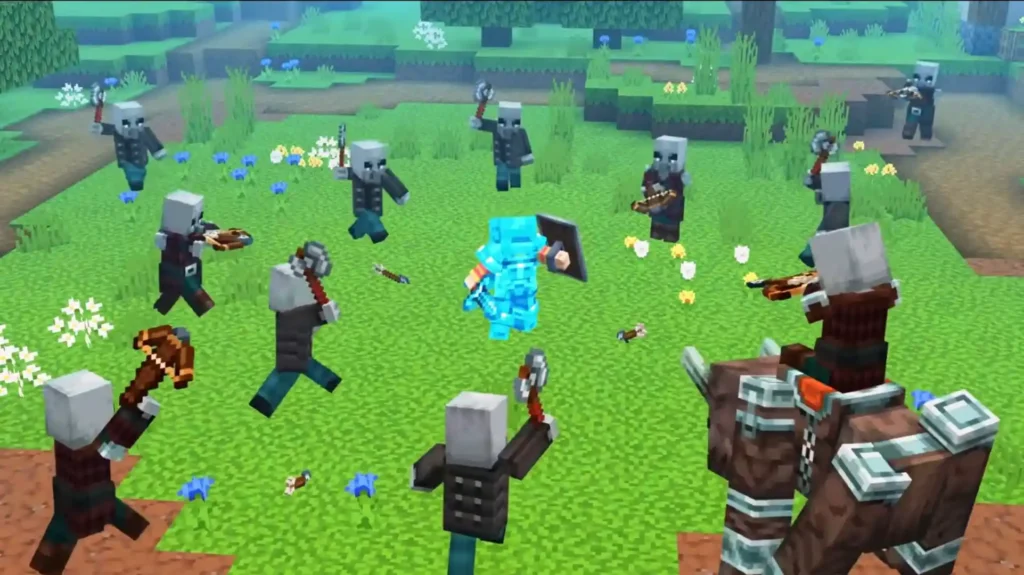
Downloaded the Actions and Stuff APK or MCPACK, but not sure what to do next. Most installation problems happen at two points. Either the MCPACK does not open Minecraft automatically, or the pack installs, but animations do not show because it is sitting in Available instead of Active in Global Resources. This Actions and Stuff setup guide solves both problems and covers every platform. Android APK install, MCPACK import for Android and iOS, Windows PC setup, and Minecraft Marketplace activation for Xbox, PlayStation, and Nintendo Switch are all included step by step. Oreville Studios built this pack to work through Minecraft’s built-in Global Resources system. No root access, no third-party apps, and no unknown sources risk beyond the standard APK install process.
Choose your platform below for specific instructions. Each section includes detailed steps with troubleshooting tips.
Get the file before setup
Choose Your Platform
Jump to your device setup instructions:
| Platform | Method | Difficulty | Time |
| Android | APK Install | Easy | 3 Minutes |
| Bedrock (Manual) | MCPACK | Medium | 5 Minutes |
| iOS | Marketplace | Easy | 5 Minutes |
| Windows PC | MCPACK Import | Medium | 5 Minutes |
| Xbox | Marketplace | Easy | 5 Minutes |
| PlayStation | Marketplace | Easy | 5 minutes |
| Switch | Marketplace | Easy | 5 minutes |
Actions and Stuff Setup for Android (APK)
The easiest setup method. One file includes everything preconfigured.
Step 1: Download the APK
Visit our Android download page and tap the download button.
File Details:
- File Name: Actions-and-Stuff v1.21. APK
- Size: 247.53 MB
- Download Time: 2-5 minutes.
Wait for the download to complete. Do not close the browser.
247.53 MB | Free
Step 2: Enable Unknown Sources
Android blocks external app installation by default.
For Android 8.0 and Newer:
1. Open Settings
2. Tap Apps or Applications
3. Tap three-dot menu (top right)
4. Select Special Access
5. Tap Install Unknown Apps
6. Find your browser (Chrome, etc.)
7. Toggle Allow from this source ON
For Android 7.0 and Older:
1. Open Settings
2. Tap Security
3. Find Unknown Sources
4. Toggle ON
5. Confirm the warning
Step 3: Install the APK
1. Open your file manager app
2. Go to the Downloads folder
3. Find the APK file
4. Tap on it
5. Tap Install when prompted
6. Wait for installation (1-2 minutes)
7. Tap Open when done
Step 4: Verify Installation
1. Minecraft opens with the main menu
2. Tap Settings (gear icon)
3. Scroll to Global Resources
4. Actions and Stuff should appear in Active Packs
If you see it listed, setup is complete.
Step 5: Choose Resolution
1. In Global Resources, find Actions and Stuff
2. Tap the gear icon next to the pack name
3. Select resolution:
- 16x for flagship phones (2022+)
- 32x for most phones (recommended)
- 64x for older phones
4. Exit settings and play
Actions and Stuff Setup for Bedrock (MCPACK)
For users who already have Minecraft Bedrock installed.
Step 1: Download MCPACK
Visit our Bedrock download page and get the MCPACK file.
File Details:
- File Name: Actions-and-Stuff v2.0. MCPACK
- Size: 18.43 MB Format: MCPACK
18.43 MB | Free
Step 2: Import the File
On Android:
1. Open file manager
2. Find MCPACK in Downloads
3. Tap the file
4. Minecraft opens automatically
5. Import progress bar appears
6. Wait for the “Import Successful” message
On iOS:
1. Open the Files app
2. Find the MCPACK file
3. Tap and hold
4. Select Share
5. Choose Minecraft
6. Wait for import
On PC:
1. Find MCPACK in the Downloads folder
2. Double-click the file
3. Minecraft opens and imports
4. Wait for confirmation
Step 3: Activate the Pack
1. Open Minecraft
2. Go to Settings
3. Select Global Resources
4. Find Actions and Stuff in the Available section
5. Tap to move to the Active section
6. Pack is now enabled
Step 4: Configure Settings
1. Tap the gear icon next to Actions and Stuff
2. Choose resolution mode
3. Exit settings
4. Create or load a world
5. Enjoy animations
Actions and Stuff Setup for iOS
iPhone and iPad users must use the Marketplace.
Step 1: Purchase Minecoins
1. Open Minecraft on your iOS device
2. Tap Marketplace (shopping bag icon)
3. Tap Minecoin balance (top right)
4. Select 1720 Minecoins ($9.99)
5. Confirm with Face ID or Apple ID
6. Coins added to the balance
Step 2: Find and Buy Pack
1. In Marketplace, tap the search icon
2. Type “Actions and Stuff.”
3. Find pack by Oreville Studios
4. Tap to open the pack page
5. Tap Purchase (1690 Minecoins)
6. Confirm purchase
7. Download starts automatically
Step 3: Activate Pack
1. Go to Settings
2. Select Global Resources
3. Find Actions and Stuff
4. Tap to Activate
5. Choose resolution (32x recommended for iOS)
6. Exit and play
Detailed Marketplace Instructions
Actions and Stuff Setup for PC
Windows 10 and 11 users with Minecraft Bedrock.
Step 1: Download MCPACK
1. Visit our PC download page
2. Click the download button
3. Save MCPACK file to Downloads
4. Wait for download to complete
Step 2: Import to Minecraft
1. Open the Downloads folder
2. Find Actions-and-Stuff-v2.0.mcpack
3. Double-click the file
4. Minecraft Bedrock opens automatically
5. Import begins immediately
6. Wait for the success message
Manual Import Path (if double-click fails):
%localappdata%\Packages\Microsoft.MinecraftUWP_8wekyb3d8bbwe\LocalState\games\com.mojang\resource_packs
Copy the extracted pack folder to this location.
Step 3: Activate and Configure
1. Open Minecraft
2. Go to Settings
3. Click Global Resources
4. Find Actions and Stuff in Available
5. Click to move to Active
6. Click the gear icon for settings
7. Choose resolution (32x or 16x for PC)
8. Apply and play
Windows 10/11 Instructions
Actions and Stuff Setup for Console
Xbox, PlayStation, and Switch all use Marketplace.
Xbox Setup
1. Open Minecraft on Xbox
2. Go to Marketplace
3. Purchase 1720 Minecoins ($9.99)
4. Search “Actions and Stuff.”
5. Buy pack (1690 Minecoins)
6. Wait for the download
7. Go to Settings, then Global Resources
8. Activate the pack
9. Choose resolution (32x for Xbox One, 16x for Series X)
PlayStation Setup
1. Open Minecraft on PlayStation
2. Go to Marketplace
3. Buy Minecoins through PlayStation Store
4. Search “Actions and Stuff.”
5. Purchase for 1690 Minecoins
6. Download completes automatically
7. Settings then Global Resources
8. Activate pack
9. Set resolution (32x for PS4, 16x for PS5)
Nintendo Switch Setup
1. Open Minecraft on Switch
2. Go to Marketplace
3. Purchase Minecoins through Nintendo eShop
4. Search “Actions and Stuff.”
5. Buy for 1690 Minecoins
6. Wait for the download
7. Go to Global Resources
8. Activate the pack
9. Choose 64x for handheld, 32x for docked
Xbox, PlayStation, Switch
Resolution Settings Explained
Actions and Stuff includes three resolution modes.
16x High Definition
Best Quality:
- Maximum texture detail
- Sharpest animations
- Highest resource usage
Recommended For:
- Flagship phones (2022+)
- Gaming PCs
- PS5 and Xbox Series X – iPad Pro
32x Standard
Balanced Quality:
- Good texture detail
- Smooth animations
- Moderate resource usage
Recommended For:
- Mid-range phones
- Most PCs
- PS4 and Xbox One
- Most users (default)
64x Lite
Performance Mode:
- Lighter textures
- All animations included
- Minimal resource usage
Recommended For:
- Older phones
- Budget devices
- Switch handheld
- Extended play sessions
How to Change:
1. Settings, then Global Resources
2. Find Actions and Stuff in Active
3. Tap the gear icon
4. Select new resolution
5. Changes apply immediately
Global Resources vs World Resources
Two ways to apply resource packs in Minecraft.
Global Resources:
- Applies to ALL worlds automatically
- Set once, works everywhere
- Recommended for Actions and Stuff
- Found in the main Settings menu
World Resources:
- Applies to ONE specific world
- Must set for each world individually
- Overrides global settings
- Found in world edit settings
Recommendation: Use Global Resources for Actions and Stuff. This ensures animations work in every world without extra setup.
Combining with Other Packs
Actions and stuff work with most texture packs.
Compatible Combinations:
Texture Packs (load BELOW Actions and Stuff):
- Faithful
- Default Style
- Most 16x texture packs
- Simple aesthetic packs
Shaders (load separately):
- ESBE Shaders
- Newb X
- Vanilla RTX (limited)
Incompatible Combinations:
Avoid Using With:
- Other animation packs
- Behavior packs that modify entities
- Heavy shader packs on mobile
- Packs that change the player model
Load Order (Top to Bottom):
1. Actions and Stuff (top position)
2. Texture packs (middle)
3. Shaders (bottom)
Note: The pack at the top has the lowest priority. The pack at the bottom has the HIGHEST priority.
Performance Optimization
Get smooth gameplay with these settings.
Reduce Render Distance:
- The default is 12-16 chunks
- Lower to 8-10 for better FPS
- Location: Settings, then Video, then Render Distance
Disable Fancy Graphics:
- Turn off Fancy Leaves
- Turn off Beautiful Skies
- Set Graphics to Fast
- Location: Settings, then Video
Close Background Apps:
- Exit other apps before playing
- Free up RAM for Minecraft
- Reduces overheating
Enable VSync:
- Prevents screen tearing
- Stabilizes frame rate
- Location: Settings, then Video, then VSync
Limit Frame Rate:
- Cap at 30 FPS on mobile
- Saves battery
- Reduces heat buildup
Use Correct Resolution:
- 64x for older devices
- 32x for most devices
- 16x only for powerful hardware
Common Setup Problems and Solutions
Pack Not Importing
Problem: The MCPACK file does not open Minecraft.
Solutions:
1. Ensure Minecraft Bedrock is installed
2. Reinstall Minecraft from the official store
3. Clear Minecraft cache
4. Restart the device
5. Redownload the file if corrupted
Animations Not Showing
Problem: Pack installed, but visuals unchanged.
Solutions:
1. Check the pack is in Active Resources (not Available)
2. Move the pack to the top of the Active list
3. Disable conflicting packs
4. Check Minecraft version compatibility
5. Restart Minecraft completely
Performance Issues
Problem: Lag, frame drops, or overheating.
Solutions:
1. Switch to 64x resolution mode
2. Lower render distance to 8 chunks
3. Disable fancy graphics
4. Close background apps
5. Remove other resource packs
6. Let the device cool down
Skin Display Problems
Problem: The player’s skin appears broken or incorrect.
Solutions:
1. This affects some custom skins
2. Open pack files on PC
3. Find player.entity.json
4. Change default texture
5. Switch from “rana” to “Minecraft: Steve.”
Detailed fix in our FAQ section.
Multiplayer Setup
Regular Servers
Actions and Stuff work on all Bedrock servers.
How It Works:
- Only you see the animations
- Other players see normal Minecraft
- No server-side installation needed
- Works on Hive, CubeCraft, and all servers
Setup:
1. Enable the pack in Global Resources
2. Join any server 3. Animations display for you only
Realms Setup
Option 1 – Personal Use:
1. Enable in your Global Resources
2. Join the Realm
3. Only you see animations
4. Other members see normal visuals
Option 2 – Realm-Wide (Owner Only):
1. Open Realm settings
2. Go to Resource Packs
3. Add Actions and Stuff
4. All members must download
5. Everyone sees animations
Backup Your Worlds
Always backup before major changes.
Android Backup Path:
/storage/emulated/0/Android/data/com.mojang.minecraftpe/files/games/com.mojang/minecraftWorlds
Windows Backup Path:
%localappdata%\Packages\Microsoft.MinecraftUWP_8wekyb3d8bbwe\LocalState\games\com.mojang\minecraftWorlds
iOS Backup:
- Use iTunes or Finder backup
- Or enable iCloud backup for Minecraft
How to Backup:
1. Navigate to the worlds folder
2. Copy the entire Minecraft Worlds folder
3. Paste to a safe location (cloud, external drive)
4. Restore by copying back if needed
Updating the Pack
When new versions are released:
For MCPACK Users:
1. Download the new MCPACK from our download page
2. Import the new file
3. Go to Global Resources
4. Remove the old version from Active
5. Activate new version
6. Delete old version (optional)
For APK Users:
1. Download the new APK
2. Install over existing app
3. Your worlds and settings preserved
4. The new pack version is active automatically
Update Frequency:
- Major updates every 2-3 months
- Compatibility patches after Minecraft updates
- Check our download page for the latest version
Setup Complete
You have successfully set up Actions and Stuff. Enjoy your enhanced Minecraft experience.
Next Steps:
- Learn all features in our complete guide
- Check the FAQ for common questions
- Visit the info page for pack details
Learn Every Animation
Questions? Visit our FAQ section for answers.