
Actions and Stuff Setup Guide
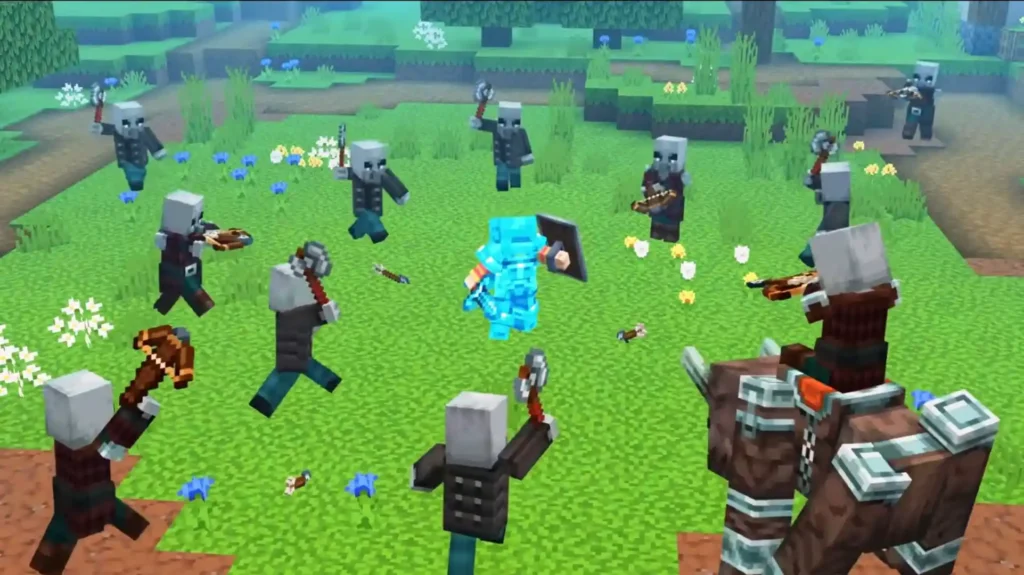
Downloaded the Actions and Stuff APK or MCPACK, but not sure what to do next. Most installation problems happen at two points. Either the MCPACK does not open Minecraft automatically, or the pack installs, but animations do not show because it is sitting in Available instead of Active in Global Resources. This Actions and Stuff setup guide solves both problems and covers every platform. Android APK install, MCPACK import for Android and iOS, Windows PC setup, and Minecraft Marketplace activation for Xbox, PlayStation, and Nintendo Switch are all included step by step. Oreville Studios built this pack to work through Minecraft’s built-in Global Resources system. No root access, no third-party apps, and no unknown sources risk beyond the standard APK install process.
Choose your platform below for specific instructions. Each section includes detailed steps with troubleshooting tips.
Get the file before setup
Choose Your Platform
Jump to your device setup instructions:
| Platform | Method | Difficulty | Time |
| Android | APK Install | Easy | 3 Minutes |
| Bedrock (Manual) | MCPACK | Medium | 5 Minutes |
| iOS | Marketplace | Easy | 5 Minutes |
| Windows PC | MCPACK Import | Medium | 5 Minutes |
| Xbox | Marketplace | Easy | 5 Minutes |
| PlayStation | Marketplace | Easy | 5 minutes |
| Switch | Marketplace | Easy | 5 minutes |
Actions and Stuff Setup for Android (APK)
Download the APK, allow the install when Android asks, and open the game. The pack is already active on first launch. Full steps with screenshots are on the Android install page.
Actions and Stuff Setup for Bedrock (MCPACK)
Download the MCPACK, tap or double-click it, then switch it on inside Global Resources. The file is 18.43 MB and works with any existing Minecraft Bedrock install. Full import steps are on the Bedrock page.
Actions and Stuff Setup for iOS
Buy the pack from Minecraft Marketplace, then activate it in Global Resources. Apple blocks external file imports, so Marketplace is the only route on iPhone and iPad. Full purchase steps are on the iOS page.
Actions and Stuff Setup for PC
Download the MCPACK and double-click it. Bedrock Edition from the Microsoft Store is required, since Java Edition will not open the file. Full Windows steps are on the PC page.
Actions and Stuff Setup for Console
Buy the pack from Marketplace on your console and it downloads to your library automatically. External files are not possible on Xbox, PlayStation or Switch. Full steps are on the console page.
Resolution Settings Explained
Three modes are included. 16x for budget and older devices, 32x for most devices, and 64x for high-end phones and PCs. All three carry identical animations, only texture sharpness changes. Full breakdown with RAM requirements is on the info page.
Global Resources vs World Resources
Two ways to apply resource packs in Minecraft.
Global Resources:
- Applies to ALL worlds automatically
- Set once, works everywhere
- Recommended for Actions and Stuff
- Found in the main Settings menu
World Resources:
- Applies to ONE specific world
- Must set for each world individually
- Overrides global settings
- Found in world edit settings
Recommendation: Use Global Resources for Actions and Stuff. This ensures animations work in every world without extra setup.
Combining with Other Packs
Actions and stuff work with most texture packs.
Compatible Combinations:
Texture Packs (load BELOW Actions and Stuff):
- Faithful
- Default Style
- Most 16x texture packs
- Simple aesthetic packs
Shaders (load separately):
- ESBE Shaders
- Newb X
- Vanilla RTX (limited)
Incompatible Combinations:
Avoid Using With:
- Other animation packs
- Behavior packs that modify entities
- Heavy shader packs on mobile
- Packs that change the player model
Load Order (Top to Bottom):
1. Actions and Stuff (top position)
2. Texture packs (middle)
3. Shaders (bottom)
Note: The pack at the top has the lowest priority. The pack at the bottom has the HIGHEST priority.
Performance Optimization
Drop the resolution one level before changing anything else. Then lower render distance to 8 chunks and close background apps. These three changes fix frame drops on almost every device.
When Setup Does Not Work
Most setup failures come down to three things. The pack imported but was never moved into Active Packs, the resolution is too high for the device, or another pack is overriding the same files. Our complete troubleshooting guide covers all eight fixes with steps for every platform.
Multiplayer Setup
Regular Servers
Actions and Stuff work on all Bedrock servers.
How It Works:
- Only you see the animations
- Other players see normal Minecraft
- No server-side installation needed
- Works on Hive, CubeCraft, and all servers
Setup:
1. Enable the pack in Global Resources
2. Join any server 3. Animations display for you only
Realms Setup
Option 1 – Personal Use:
1. Enable in your Global Resources
2. Join the Realm
3. Only you see animations
4. Other members see normal visuals
Option 2 – Realm-Wide (Owner Only):
1. Open Realm settings
2. Go to Resource Packs
3. Add Actions and Stuff
4. All members must download
5. Everyone sees animations
Backup Your Worlds
Always backup before major changes.
Android Backup Path:
/storage/emulated/0/Android/data/com.mojang.minecraftpe/files/games/com.mojang/minecraftWorlds
Windows Backup Path:
%localappdata%\Packages\Microsoft.MinecraftUWP_8wekyb3d8bbwe\LocalState\games\com.mojang\minecraftWorlds
iOS Backup:
- Use iTunes or Finder backup
- Or enable iCloud backup for Minecraft
How to Backup:
1. Navigate to the worlds folder
2. Copy the entire Minecraft Worlds folder
3. Paste to a safe location (cloud, external drive)
4. Restore by copying back if needed
Updating the Pack
When new versions are released:
For MCPACK Users:
1. Download the new MCPACK from our download page
2. Import the new file
3. Go to Global Resources
4. Remove the old version from Active
5. Activate new version
6. Delete old version (optional)
For APK Users:
1. Download the new APK
2. Install over existing app
3. Your worlds and settings preserved
4. The new pack version is active automatically
Update Frequency:
- Major updates every 2-3 months
- Compatibility patches after Minecraft updates
- Check our download page for the latest version
Setup Complete
You have successfully set up Actions and Stuff. Enjoy your enhanced Minecraft experience.
Next Steps:
- Learn all features in our complete guide
- Check the FAQ for common questions
- Visit the info page for pack details
Learn Every Animation
Questions? Visit our FAQ section for answers. Every platform has slightly different steps. For a complete step-by-step installation guide covering Android, iOS, PC, and Xbox in one place, visit our full installation guide